Blog ·
NYC Remote Learning: Check the School Device at Home
Prepare for NYC’s 3 November remote learning day: check the device, home connection, student sign-in, class material and school help route.
On this page7 sections
The school laptop turns on. That is a useful start, but can your child sign in and open the material their teacher has assigned?
The NYC Public Schools 2026–27 calendar lists Tuesday, 3 November 2026, as an Election Day remote-learning day. Before then, try the device on the connection your child will use at home. Keep a short note of what works and what needs the school’s help.
This guide is for NYCPS families. If your child attends a charter, private or parochial school, check that school’s own calendar and instructions.
Check the device on the home connection
Use the computer, laptop or tablet your child expects to work on. Charge it, find its charger, and connect it where the remote work will happen. A connection that works in the classroom still needs a check at home.
NYCPS’s remote-learning preparation guidance, published on 21 January 2026, tells families to ask their school for a loaned device if they lack an internet-ready one. It recommends asking ahead of a building closure. If your household needs a device or help getting connected, contact the school before the remote morning.
If the device cannot connect, record that problem first. Changing an app limit will not tell you whether the home connection is working. For a school-managed device, ask the school about settings you cannot change.
Use the student account for the class tools
The NYCPS Accounts help page says the school supplies the student’s @nycstudents.net sign-in and recommends TeachHub for its applications.
Test that sign-in on the device. Record student access separately from the parent’s NYCSA portal, which has a different role.
If the student password does not work, NYCPS lists three recovery routes:
- Student Self-Service, with recovery information set up beforehand.
- A parent or guardian resetting the student password through NYCSA.
- Help from the school when the family cannot complete a reset.
Follow the current instructions linked above. If recovery details were never configured or a reset cannot be completed, ask the school. Keep passwords and recovery answers out of the shared note.
Open the material the teacher has supplied
After sign-in, open the class link or material the teacher currently provides. Check the actual task location, rather than stopping when the account’s home page appears.
Perhaps the class opens in the portal but its reading does not load. Or the reading opens, while a teacher-assigned video remains unavailable. Record the specific point where the check stops and ask the school how the assigned material should be accessed on that device.
Use the school’s instructions for required access. A restriction on a school device is a question for its administrator; switching accounts to get around it can leave the original problem unresolved. Avoid changing several controls at once, because you will lose track of which part of the task needed help.
Keep a support note you can use
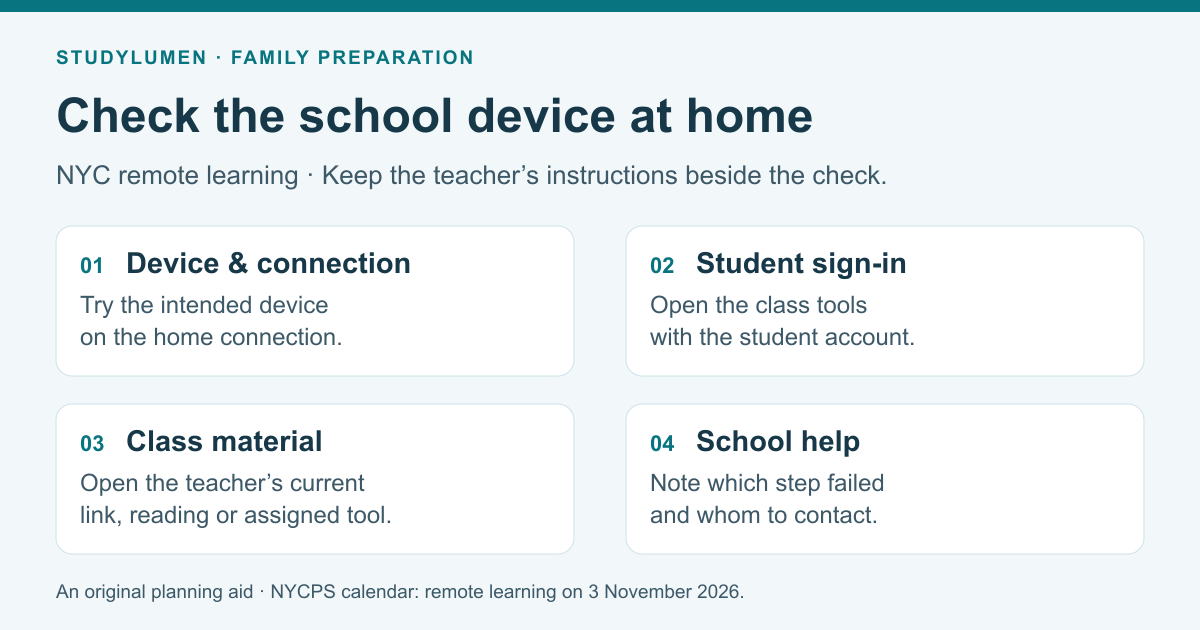
Copy these four rows onto paper or into a family note. The last column records an outcome, not a password. This is an original planning aid from StudyLumen.
- Check
- Device and connection
- Try at home
- Start the intended device, check charging and connect where the work will happen.
- Record the outcome
- Ready, connection problem, or device request still needed.
- Check
- Student sign-in
- Try at home
- Use the student account to open the school’s class tools.
- Record the outcome
- Sign-in works, or account help is needed through the official recovery route.
- Check
- Class material
- Try at home
- Open the teacher’s current link, reading or assigned tool on that device.
- Record the outcome
- Material opens, or the specific item to ask the school about.
- Check
- School help
- Try at home
- Find the school contact and the support channel in its instructions.
- Record the outcome
- Who to contact, which part failed, and the answer still needed.
| Check | Try at home | Record the outcome |
|---|---|---|
| Device and connection | Start the intended device, check charging and connect where the work will happen. | Ready, connection problem, or device request still needed. |
| Student sign-in | Use the student account to open the school’s class tools. | Sign-in works, or account help is needed through the official recovery route. |
| Class material | Open the teacher’s current link, reading or assigned tool on that device. | Material opens, or the specific item to ask the school about. |
| School help | Find the school contact and the support channel in its instructions. | Who to contact, which part failed, and the answer still needed. |
NYCPS’s remote-preparation page also points families to SupportHub for school accounts, software and devices. Use the official support link in that guidance or the contact your school has given you. Describe the device and the step that failed so the school can address the right problem.
Give the personal phone its own role
Decide whether a personal phone is needed for the assignment while the school device is in use. If it is not needed, choose a place for it during the work. If it is needed, name the task it serves and the window when it will be available. Those are household choices to make alongside the school’s instructions.
For a supervised personal Android device, a StudyLumen routine can apply one selected rule set during that agreed window. A temporary access request gives the supervisor a specific decision about an extra tool; an approval ends at its recorded expiry. The homework mode guide explains that routine. School-managed device and account settings remain questions for the school.
Recheck the school’s plan before the day
Keep the teacher’s latest instructions with the note. A working sign-in today does not answer which activity or class link the teacher will use on the remote day. Update the material row when those instructions arrive.
Before 3 November, revisit any row that still needs an answer. Afterward, keep the device check for another remote session or homework task, and use the date and instructions for that occasion. The useful result is a clear record of what your child can open and where to take the remaining problem.
Sources
- NYCPS 2026–2027 school year calendar — Election Day remote-learning entry and school scope; checked 12 October 2026.
- NYCPS Accounts — student sign-in, TeachHub and password-recovery routes; checked 12 October 2026.
- NYCPS: Prepare for Remote Learning — published 21 January 2026; device requests and school technology help, rechecked 12 October 2026.