Blog ·
UNPLUGGED Schools Grant Act: A Parent’s Policy Checklist
Review the UNPLUGGED school-phone proposal, then use a parent checklist for school contact, device storage, required access and a personal-device homework window.
On this page7 sections
A school phone policy should tell you how a pickup change reaches your child, where a device goes during the day, and whom to ask when an assignment needs a laptop. Those answers belong beside the policy you received from your school.
The UNPLUGGED Schools Grant Act has brought those questions into the national debate. Use its proposal as a reason to check the practical details with your school. Keep the school’s current instructions and your personal-device homework plan within reach.
The proposal is still in committee
Senators Mark Kelly and Tom Cotton introduced S.5620 on September 30, 2026. The Government Publishing Office’s introduced bill text records its referral to the Senate Committee on Health, Education, Labor, and Pensions. The committee’s legislation listing, checked on October 9, gives September 30 as its last action.
It remains a proposal in the records reviewed for this article. The text would create grants to state education agencies supporting public elementary and secondary schools with a school-hours device policy. It calls for consultation with educators, parents and students, and would fund enforcement procedures and secure storage.
Kelly’s October 1 announcement describes lockers, lock boxes and phone pouches among the storage options. For instructions that apply to your child now, start with the policy your school has issued and ask the school to clarify anything missing.
Keep these questions beside the school’s policy
The proposal discusses parent contact through school personnel and exceptions involving health conditions, disabilities or special needs. Your school can explain the procedures it currently uses, including the person responsible for arranging required device access.
Copy the answers into a note you can find quickly. A school office number saved in your contacts is easier to use during a pickup change than a paragraph in a national news story.
- Question
- Which hours and devices does our policy cover?
- Ask the school for
- The current written policy and any instructions for lunch, transport or school activities.
- Keep in your note
- The applicable times and devices, using the school’s wording.
- Question
- How does a pickup change reach my child?
- Ask the school for
- The contact route through school personnel and the procedure for urgent messages.
- Keep in your note
- The phone number or approved channel, plus the relevant office.
- Question
- Where is the device stored and how is it returned?
- Ask the school for
- The school’s storage and collection instructions, including whom to contact about a problem.
- Keep in your note
- Storage location, return process and responsible staff member or office.
- Question
- Who arranges access that my child needs?
- Ask the school for
- The coordinator for an existing health, disability or learning-access arrangement and the documentation process.
- Keep in your note
- The responsible contact and agreed procedure. Keep private health details in the school’s approved channel.
| Question | Ask the school for | Keep in your note |
|---|---|---|
| Which hours and devices does our policy cover? | The current written policy and any instructions for lunch, transport or school activities. | The applicable times and devices, using the school’s wording. |
| How does a pickup change reach my child? | The contact route through school personnel and the procedure for urgent messages. | The phone number or approved channel, plus the relevant office. |
| Where is the device stored and how is it returned? | The school’s storage and collection instructions, including whom to contact about a problem. | Storage location, return process and responsible staff member or office. |
| Who arranges access that my child needs? | The coordinator for an existing health, disability or learning-access arrangement and the documentation process. | The responsible contact and agreed procedure. Keep private health details in the school’s approved channel. |
These are questions for your school, rather than additional requirements created by this worksheet. Follow the school’s agreed access arrangement when a device supports a health or disability need; route changes through the responsible school team and relevant professional.
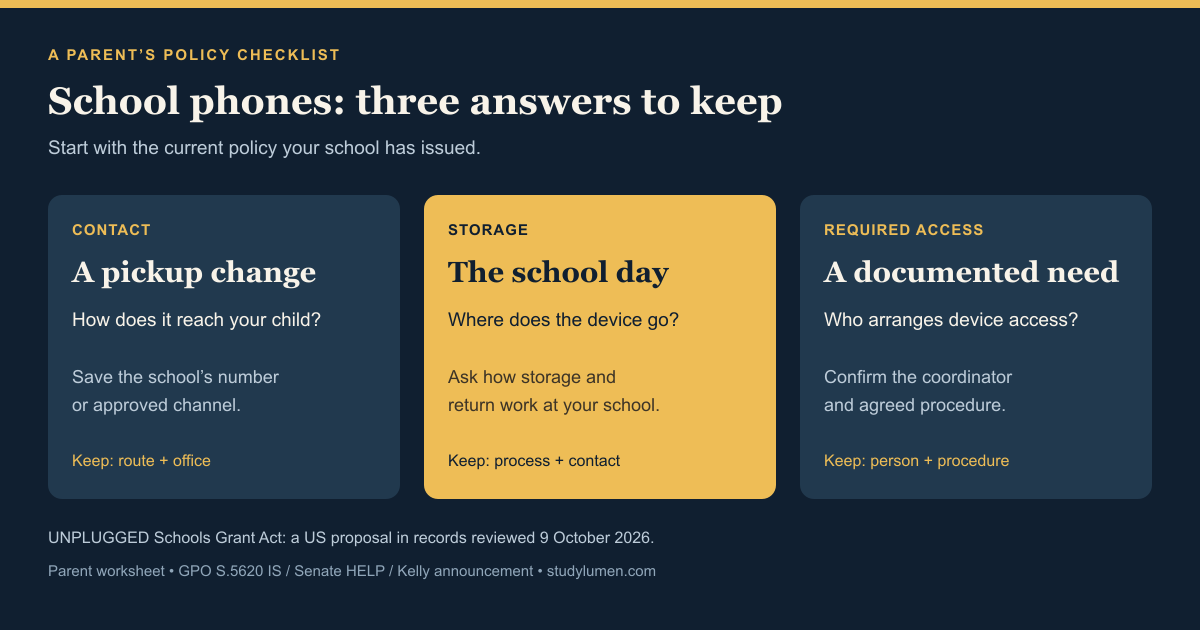
A school laptop needs a school answer
The introduced text includes laptops and tablets in its device definition, then describes an exception with three conditions: school authorization, instructional use only, and restrictions on specified non-academic services during school hours. The device’s label alone does not answer how it would be treated under the proposal.
For today’s assignment, ask which device and account the school authorizes and whom to contact if a required site is blocked. The school administrator is the right person to resolve a managed-account restriction. Our guide to what school-issued devices leave for parents covers the questions to ask about that account.
What the survey number actually measures
The sponsor’s announcement links a February 19, 2025 NCES School Pulse Panel release. It reports that 53 percent of public-school leaders felt cell-phone use had negatively affected students’ academic performance.
The survey collected responses from December 6–20, 2024, from 1,490 public K–12 schools across the 50 states and the District of Columbia. NCES labels it an experimental data product. The figure describes leaders’ reports; it does not measure a change in grades after a phone policy, or evaluate the UNPLUGGED proposal. It also supplies no tested homework duration for your household.
Set the personal Android device up for homework
If homework uses a personal phone or tablet, record its start and end times, the class apps that must remain available, and who can approve an extra tool. Choose the window around the assignment; the survey above provides no recommended number of minutes.
For families already using Family Link, Google’s schedule instructions support Downtime and School time on supervised Android devices running Android 7 or later:
- Open the parent’s Family Link app and select the child.
- Go to Screen time → Schedules and enable the schedule you want to use.
- Open its weekly schedule, select the days, set start and end times, and save. Review Allowed Apps for the class tools that need access.
Google’s app-limit help excludes devices running Google Kids Space from Unlimited time apps. On eligible devices, open Allowed Apps. If no Unlimited time apps are set up, choose Select Apps and mark the needed apps Unlimited Time. If you already have them, turn on Unlimited Apps and use View app list to change the selection.
Calls remain available. During Downtime, the messaging app needs Unlimited time access for texts; School time permits calls and texts. Check those settings together before relying on the schedule for homework.
Apply the homework window in StudyLumen
On a supervised personal Android device, a StudyLumen routine applies one selected rule set during the homework window. A temporary access request can cover an extra class tool until its recorded end time. The Homework Mode guide explains how to carry that written plan into a routine.
Website filtering is optional and separate from app rules. Keep school-managed account changes with the school administrator, and review notification settings in the device’s own controls when needed.
Sources
- U.S. Government Publishing Office: S.5620, introduced in Senate, September 30, 2026.
- Senate HELP Committee: legislation listing, S.5620 entry checked October 9, 2026.
- Senator Mark Kelly: UNPLUGGED Schools Grant Act announcement, October 1, 2026.
- NCES: School Pulse Panel release, February 19, 2025.
- Google For Families: set a schedule on your child’s device, checked October 9, 2026.
- Google For Families: set app time limits on your child’s device, checked October 9, 2026.